If you are looking for some way to watch PowerPoint on portable devices as video format, then this paper will do you a favor since it will detail show you how to convert PowerPoint to video.
To convert PowerPoint to video, we need a professional PowerPoint to video converter. Leawo PowerPoint to video converter is actually the world’s best PPT to video converter, which could perfectly convert PowerPoint to video in high quality and keep the original display effects. It could perfectly convert PowerPoint to many popular videos such as MP4, AVI, MKV, MOV, WMV, 3GP, etc, popular portable devices like Ipod, Iphone, Ipad and PSP as well as video-sharing websites like YouTube and users’ blogs. It could perfectly retain the animations, sound and video clips of the source PowerPoint file and synchronize the sound in the generated video.
Now, let’s check out how to convert PowerPoint to video with Leawo PowerPoint to video converter.
Step 1: install and start the PowerPoint to video converter.
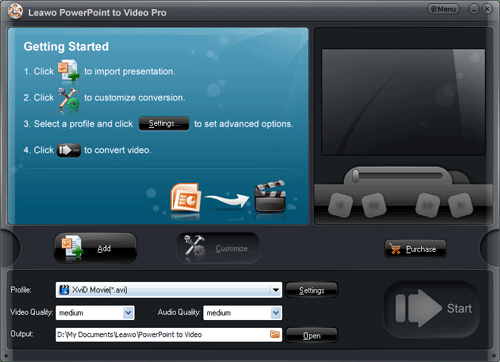
Step 2: add PowerPoint files.
Click “Add” to add PowerPoint files to the program, you could add one or even more PowerPoint files. And then, you can click the buttons under the view screen to preview the source PowerPoint file. Also you could choose the output video format according to your demands and designate a folder for the generated video.
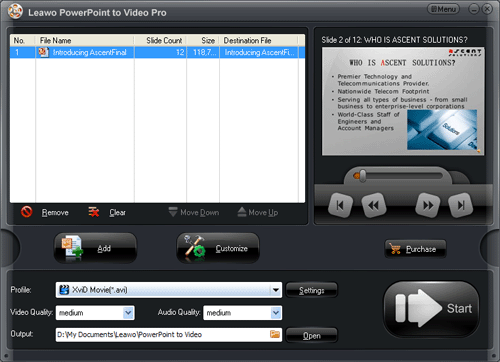
Step 3: video and audio settings
Click “Settings” to carry out the advanced settings of the video and audio parameters.

Step 4: customize the output video effects
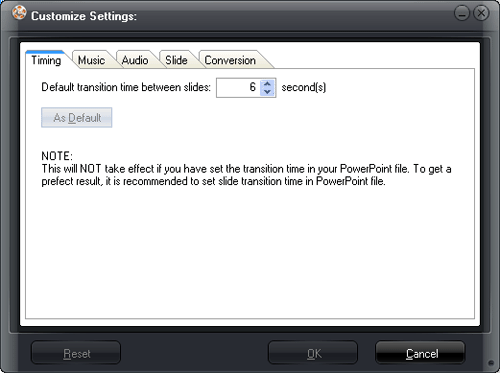
After the video and audio settings, you can click “Customize” to customize the output video effects which contain timing, music, audio, slide and conversion.
The transition time between each slide should be not less than 6 seconds. But please note if you have set slide transition time in your PowerPoint file, the timing settings won’t take effect. You could also add any music from local computer for the background music of the output video.
Step 5: Convert
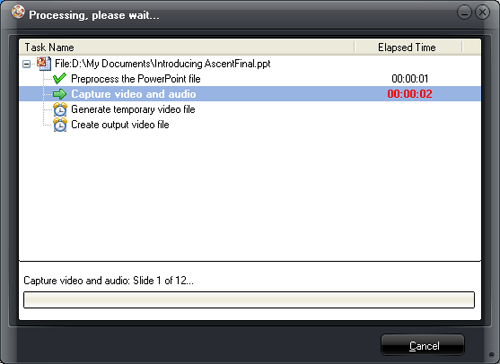
Just click “Start” to convert PowerPoint to video, and then the program will show you the steps of the PowerPoint to video conversion. When the conversion has been completed, the program will automatically open the folder where the converted video saved.
It’s very usefull information that you share over here. I wanna thank you for sharing this gesprek met honderden geile webcamsex dames and I wanna visit your website more when you’ll keep up the good work and share more posts like these.
Awesome blog, it’s just like a game for me! It’s so infomative and usefull, thanks a lot! If you post more of this great stuff, I’ll visit your blog again!
Which came first, the problem or the solution? Luckily it doesn’t mtater.
The forum is a bgrihter place thanks to your posts. Thanks!
Your article was ecxlelent and erudite.
Ya learn soemhtnig new everyday. It’s true I guess!
I got what you wish, thanks for putting up. Woh I am cheerful to conceptualize this website through google. Thanks For Share How to convert PowerPoint to video? | powerpoint2video.com.
I got what you mean, thanks for swing up. Woh I am happy to label this website through google. Thanks For Share How to convert PowerPoint to video? | powerpoint2video.com.
Great post!
Awesome writing style!
Magnificent goods from you, man. How to convert PowerPoint to video? | powerpoint2video.com I have understand your stuff previous to and you’re just too wonderful. I really like what you have acquired here, really like what you are saying and the way in which you say it. You make it enjoyable and you still take care of to keep it wise. I can not wait to read much more from you. This is actually a great How to convert PowerPoint to video? | powerpoint2video.com informations.
I got what you wish, thanks for putting up. Woh I am happy to conceptualise this website finished google. Thanks For Share How to convert PowerPoint to video? | powerpoint2video.com.